Logic & Flow Control
Make your flow smart by adding decisions, delays, and background data processing. These blocks determine the path a user takes or how data is handled behind the scenes.
Switch Condition
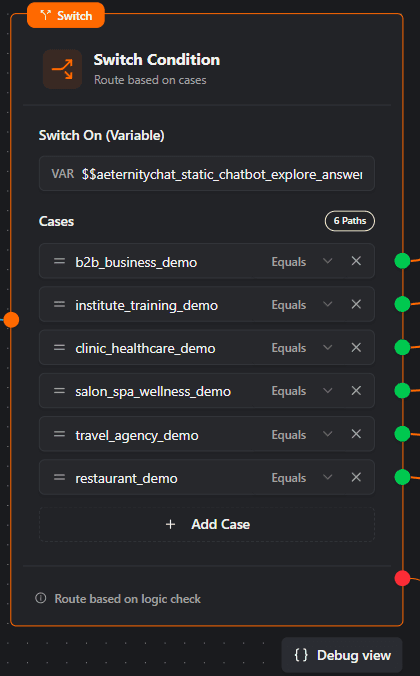
The Switch Condition block is used to route users down different paths based on a specific variable’s value. It is ideal for menus or checking the status of an item.
Configuration
- Switch On (Variable): Select the variable you want to check (e.g.,
$$inboundMessageTextor a saved$$answer). - Cases: Add specific rules to check against that variable.
- Value: The text you are looking for (e.g.,
b2b_business_demo). - Operator: How to compare it (e.g.,
Equals). - Path: Each case creates a Green Connection Point on the right side of the block.
- Value: The text you are looking for (e.g.,
- Default Path: The Red Connection Point at the bottom acts as the “Else” or “Default” route if none of the cases match.
Tip: Label your cases clearly so you know which green dot leads to which path in your flow.
If-Else Condition
A simpler version of the Switch, used for binary “Yes/No” or “True/False” checks.
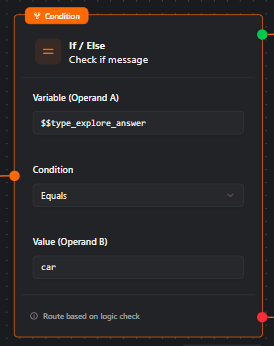
- Operator: Choose how to compare (e.g.,
Equals,Contains). - Operand A: The variable you are checking (e.g.,
$$storedValue1). - Operand B: The value you are looking for.
- True/False Paths: The block splits into two paths based on the result.
Change Flow (Jump)
This block allows you to move the user from the current workflow to a completely different one. This is useful for connecting separate modules (e.g., jumping from a “Main Menu” flow to a “Support Ticket” flow).
Change Flow Node UI Configuration

Variable Persistence
A key feature of the Change Flow block is that it preserves your data.
- Carry Forward: When the user is transferred to the new workflow, all variables defined or collected up to that point are automatically carried forward.
- Example: If you collect
$$user_namein Flow A, it will be available immediately in Flow B.
Temporary Execution: The transfer to the new workflow is temporary. The user is shifted to the target flow only until that flow finishes execution. They are not permanently “moved” or assigned to the new flow for future interactions.
Timer (Wait)
Pause the flow for a set amount of time before executing the next block. This is useful for pacing messages so they don’t arrive all at once.
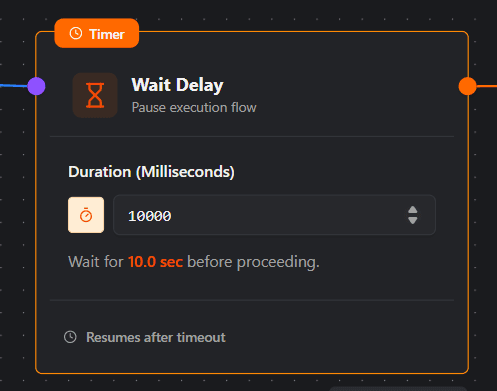
- Duration: Enter the wait time in milliseconds (e.g.,
5000for 5 seconds). - Limit: The maximum wait time allowed is 10 seconds (
10000ms).
Extract JSON (Parse Data)
This block allows you to extract specific information from a complex data object (like an API response) and save it into a simple variable you can use later.
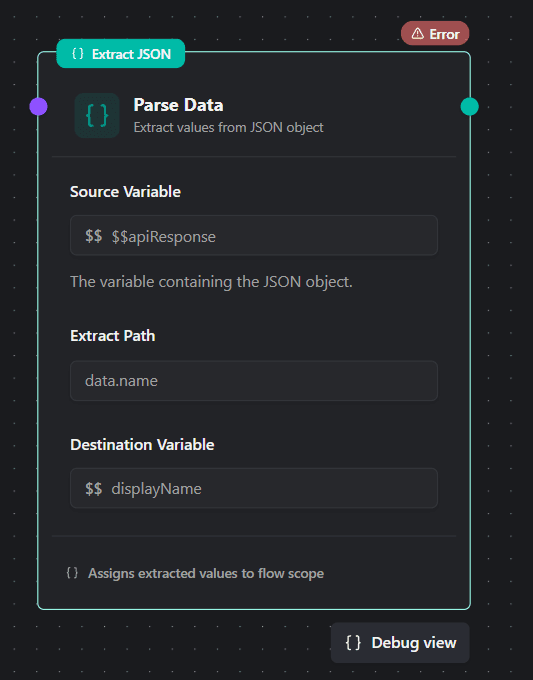
Configuration fields
- Source Variable: The variable containing the raw JSON object you want to read (e.g.,
$$apiResponse). - Extract Path: The specific “address” of the data you want inside that object (e.g.,
data.nameorfield1.nestedField2). - Destination Variable: Create a new variable name here (e.g.,
$$displayName). The extracted data will be saved into this variable, allowing you to use it in messages or other blocks.
Note: Ensure your Extract Path perfectly matches the structure of your JSON data, otherwise the Destination Variable will remain empty.