Import Contacts
You can bulk import contacts into Aeternitychat using a CSV file. This is useful when migrating from another platform or adding contacts from an external source.
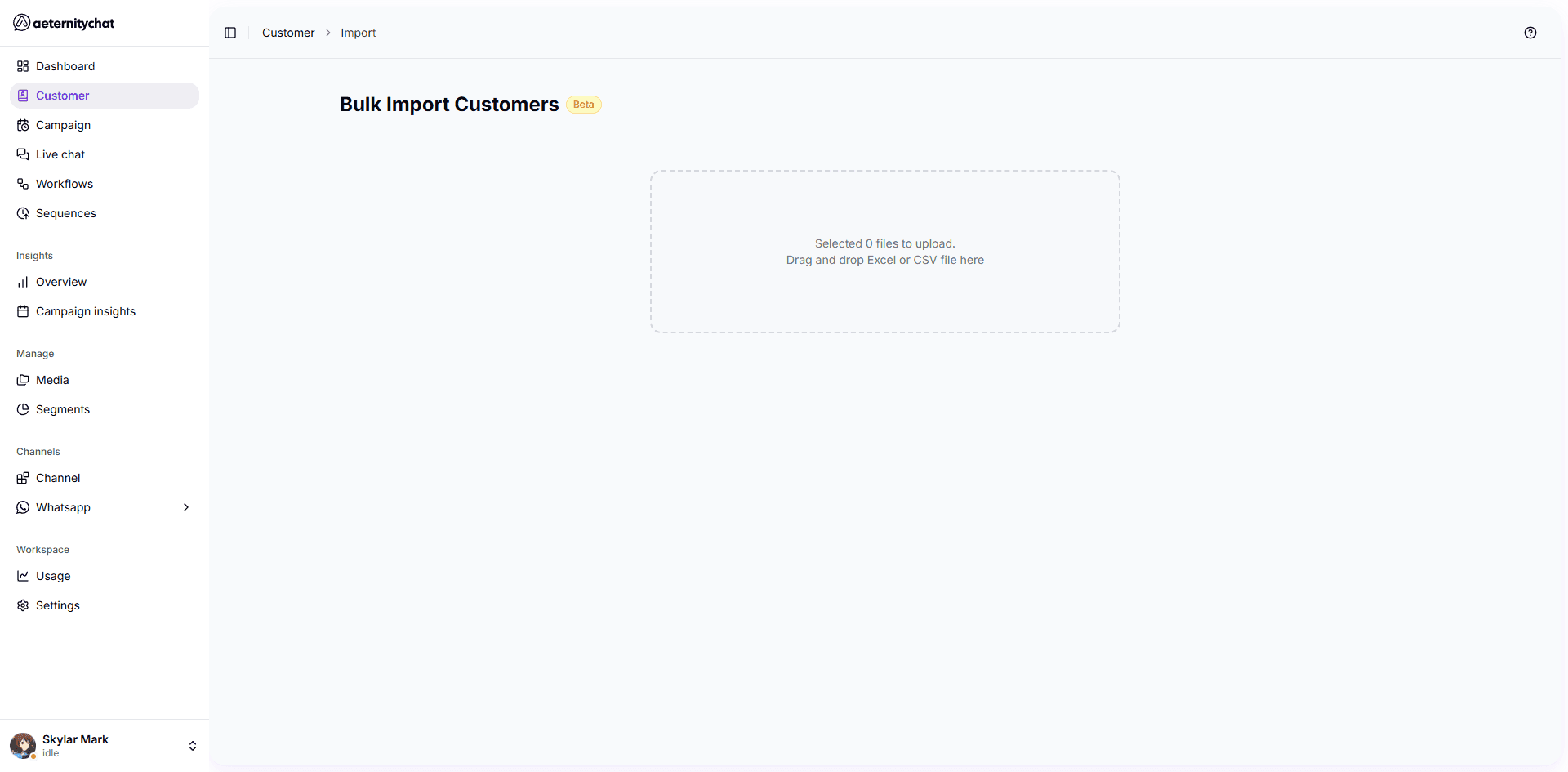
3-Step Import Process
Step 1: Upload
- Go to Customer in the sidebar
- Click the Import button in the top right
- Drag and drop your CSV or Excel file (.csv, .xls, .xlsx) into the upload zone
Step 2: Map Columns
Map each column in your CSV to an Aeternitychat field:
| Aeternitychat Field | Required | Description |
|---|---|---|
| First Name | Yes | Customer’s first name |
| Last Name | No | Customer’s last name |
| Recipient ID | Yes | Phone number with country code (e.g., 917738388884) |
| Tags | No | Comma-separated tags to apply |
| Segments | No | Comma-separated segment names |
| Custom Attributes | No | Any custom attribute fields you’ve defined |
Step 3: Preview & Import
- Review the data preview table on the left
- On the right, configure Global Import Settings:
- Segments — Assign all imported contacts to specific segments
- Tags — Apply tags to all imported contacts
- Channel Type — Defaults to WhatsApp
- Global Attributes — Set attribute values for all contacts
- Edit or remove individual rows if needed
- Click Import to add the contacts
Phone numbers must include the country code without the + sign. For example, use 917738388884 for an Indian number, not +917738388884.
Import Tips
- Duplicates — If a phone number already exists, the import will update the existing contact rather than creating a duplicate
- Required fields — Phone number is the only required field
- File size — Large imports may take several minutes to process
- Tags — You can assign tags during import to organize the new contacts immediately
After importing, your new contacts will appear in the Customers table. You can use them in campaigns, sequences, and workflows right away.