Segments
Segments are dynamic groups of contacts defined by filter rules. Unlike tags (which are manually applied), segments automatically include contacts that match your conditions.
Accessing Segments
Navigate to Segments in the sidebar under the Manage section. Here you can view, create, and manage your segments.
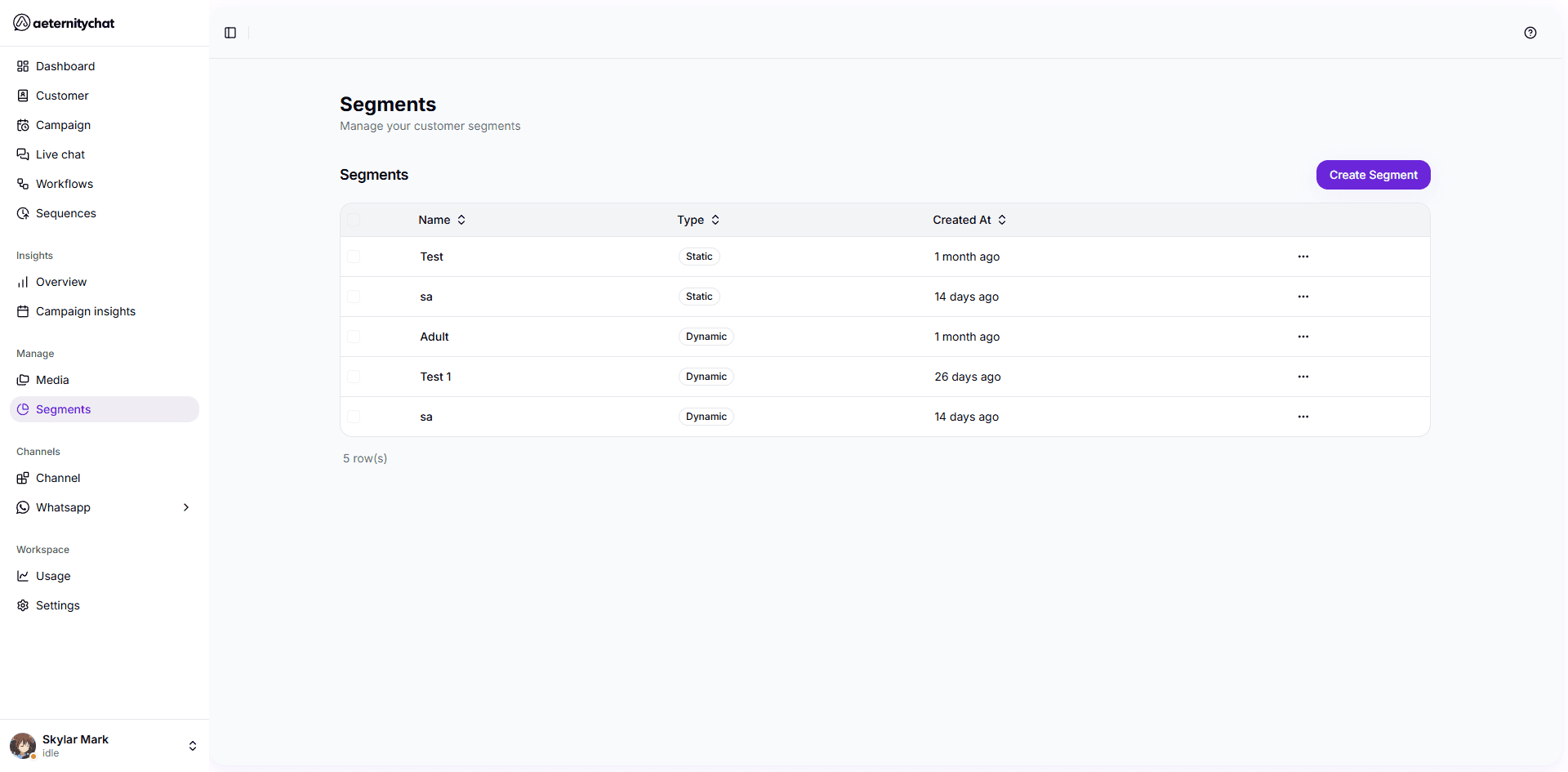
Segment Types
| Type | Description |
|---|---|
| Static | Manually created via the Segments page. Contacts are added by name. |
| Dynamic | Created from filters on the Customers page. Contacts are automatically included when they match the filter conditions. |
Creating a Segment
- Go to Segments and click Create Segment
- Give your segment a name
- Add filter conditions to define which contacts are included
- Save the segment
You can also create a Dynamic Segment directly from the Customers page by applying filters and clicking Create Dynamic Segment.
Filter Conditions
You can combine multiple conditions to define your segment. Conditions can be based on:
- Tags — Contacts that have (or don’t have) specific tags
- Attributes — Contacts where a custom attribute matches a value
- Channel — Contacts on a specific platform
- Opt In — Contacts who have opted in or out
- Date — Contacts first contacted within a date range
Conditions can be combined with AND (all conditions must match) or OR (any condition can match) logic.
Using Segments
Segments are useful in several areas:
Campaigns
When creating a campaign, you can select a segment as your audience instead of sending to all contacts. This lets you target specific groups with relevant messages.
Customer Filtering
On the Customers page, click the Segments button to filter the table by a saved segment. This gives you a quick view of contacts in any group.
Workflows
While segments aren’t directly used in workflow conditions, you can use the same tag and attribute data that defines your segments to route flows with Switch and If-Else blocks.
Segments are dynamic — contacts are automatically added or removed as their data changes. If a contact gains a tag that matches a segment’s condition, they’ll be included in that segment immediately.
Managing Segments
From the Segments page, you can:
- Edit a segment’s name or conditions
- Delete segments you no longer need
- View the count of contacts that match the segment